Logo editor
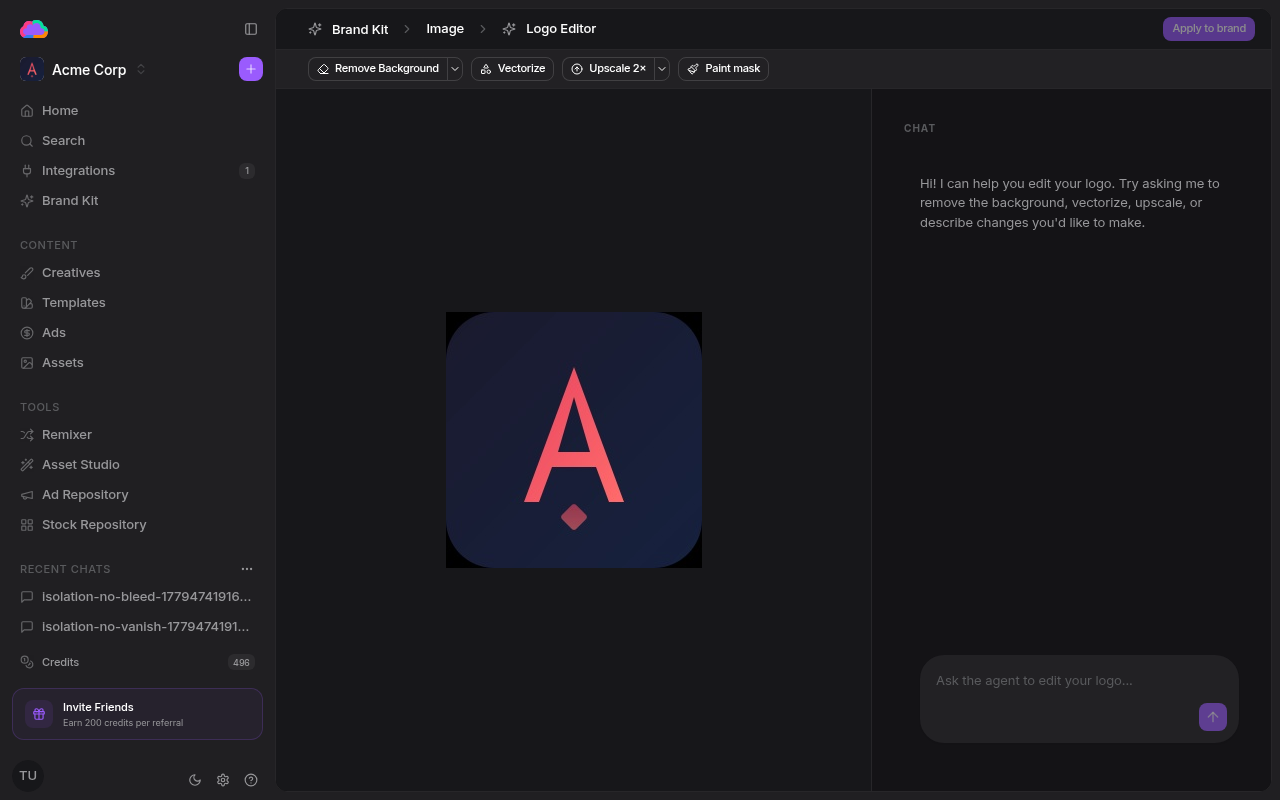
The logo editor lets you refine and transform your brand logos using AI-powered tools. Remove backgrounds, convert to vector, upscale resolution, or describe freeform edits in chat — all without leaving the dashboard.
Accessing the editor
From any brand page, go to Brand Kit in the sidebar, switch to the Image tab, and click the edit button on any logo. The editor opens with your logo loaded in the preview canvas.
The URL follows the pattern /brand/:id/logo-editor/:logoType where logo type can be primary, dark, or light.
AI operations
The operation bar at the top of the editor provides three one-click operations — Remove Background, Vectorize, and Upscale — plus a Paint mask tool for targeted edits. For freeform changes, describe what you want in the AI chat panel on the right.

Each AI operation uses credits from your account balance. Check your remaining credits in the sidebar or on the billing page.
Paint mask
The Paint mask tool lets you paint over specific areas of your logo before running an operation. This allows targeted edits — for example, masking just the icon portion before removing its background, or highlighting an area for the AI to focus on during an edit.
Adjust the brush size and use the eraser to refine your selection. Click Clear to reset the mask.
Version history
Every operation creates a new version of your logo. The version strip at the bottom of the editor shows thumbnails of all versions with small icons indicating which operation created each one.
- Click any version to preview it in the main canvas
- The currently applied version shows a green checkmark
- Hover over a version to reveal the delete button
- Click Apply to brand in the top-right corner to set the selected version as your brand logo
You can freely experiment with operations without losing your original logo. The original is always available as the first entry in the version strip.
Supported formats
Input: PNG, JPEG, WebP, SVG
Output: PNG (for remove background, upscale, AI edit) or SVG (for vectorize)