Google Drive
Connect Google Drive to import your existing brand images into the Adkumo asset library — no manual downloads and re-uploads.
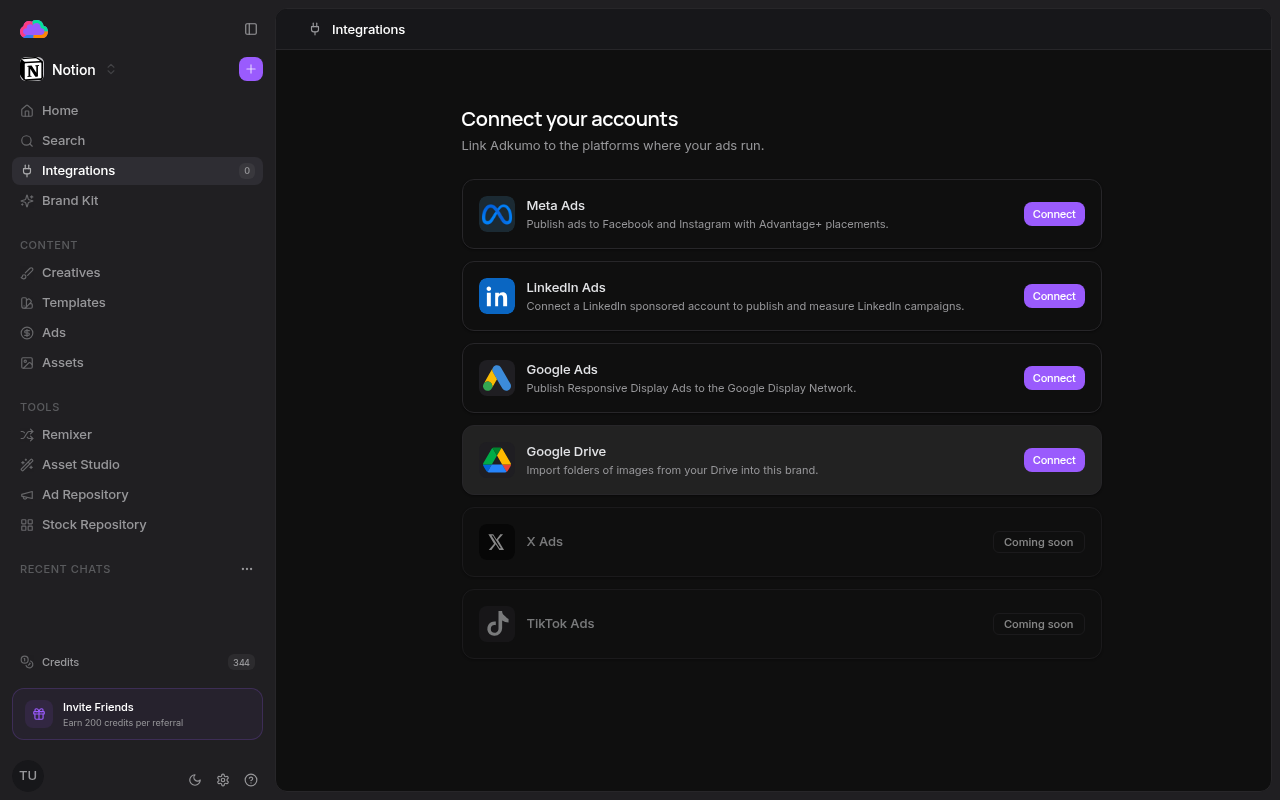
Step 1 — Connect your account
- Open Integrations from the sidebar
- Click Connect on the Google Drive row
- Authorize Adkumo in the Google window that opens
Step 2 — Import images
- Open the Assets page
- Click Add from Drive
- Pick a folder in the Google Picker window that opens
- Adkumo imports the images in the background — progress shows in the task tray, and you can cancel anytime
Only image files (PNG, JPEG, WebP, GIF, SVG) are imported — everything else in the folder is skipped.
Data access & permissions
When you connect Google Drive, Adkumo requests three OAuth scopes and uses them only for the import flow above:
https://www.googleapis.com/auth/drive.file— read and download only the files and folders you explicitly select in the Google Picker. Adkumo cannot browse, search, or read the rest of your Drive, and it never modifies or deletes anything in your Drive.https://www.googleapis.com/auth/userinfo.emailandhttps://www.googleapis.com/auth/userinfo.profile— show the connected account's email address and name on the Integrations page.
OAuth tokens are encrypted at rest and never exposed to your browser. Disconnecting on the Integrations page deletes the stored tokens immediately, and you can also revoke Adkumo's access at any time from your Google Account permissions. For the full picture, see the Google API Disclosure.