Creatives
The Creatives tab is where every ad creative lives for a brand. Each item is a generated visual, copy, and format ready for a paid placement.
Browse every creative in a visual grid, search by title or copy, and filter by ad platform or status.
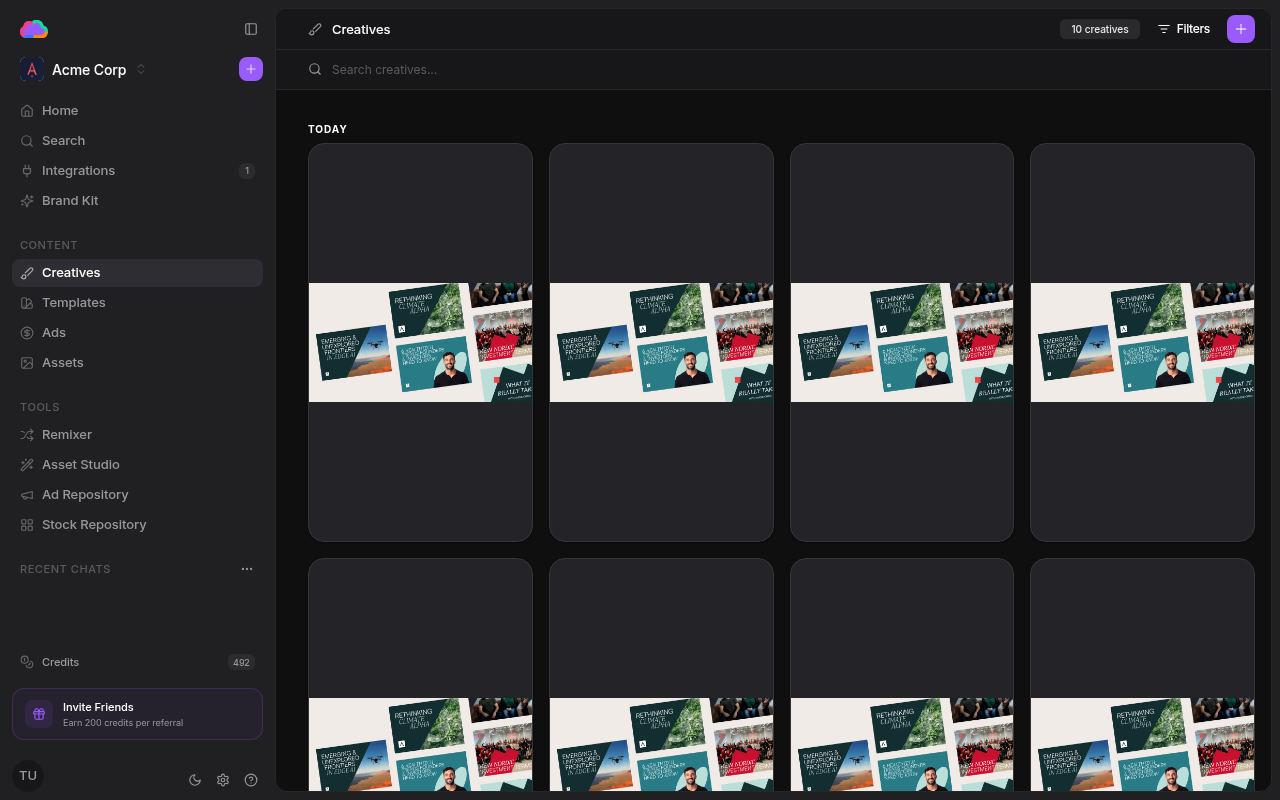
Grid view
Ad creatives are displayed as cards grouped by date. Each card shows the generated visual, its title, and a quick Publish action. Hover a card to reveal a checkbox for bulk selection.
Filtering and search
Use the search bar to find creatives by title or copy. The Filters button narrows results by ad platform and status (Draft, Ready). The count badge next to the header reflects the active result set.
Bulk actions
Select one or more creatives with the checkboxes, then delete the selection from the action bar.
Refining a creative
Click any card to open the creative. The header has two tabs — Viewer and Editor — plus a Publish button.
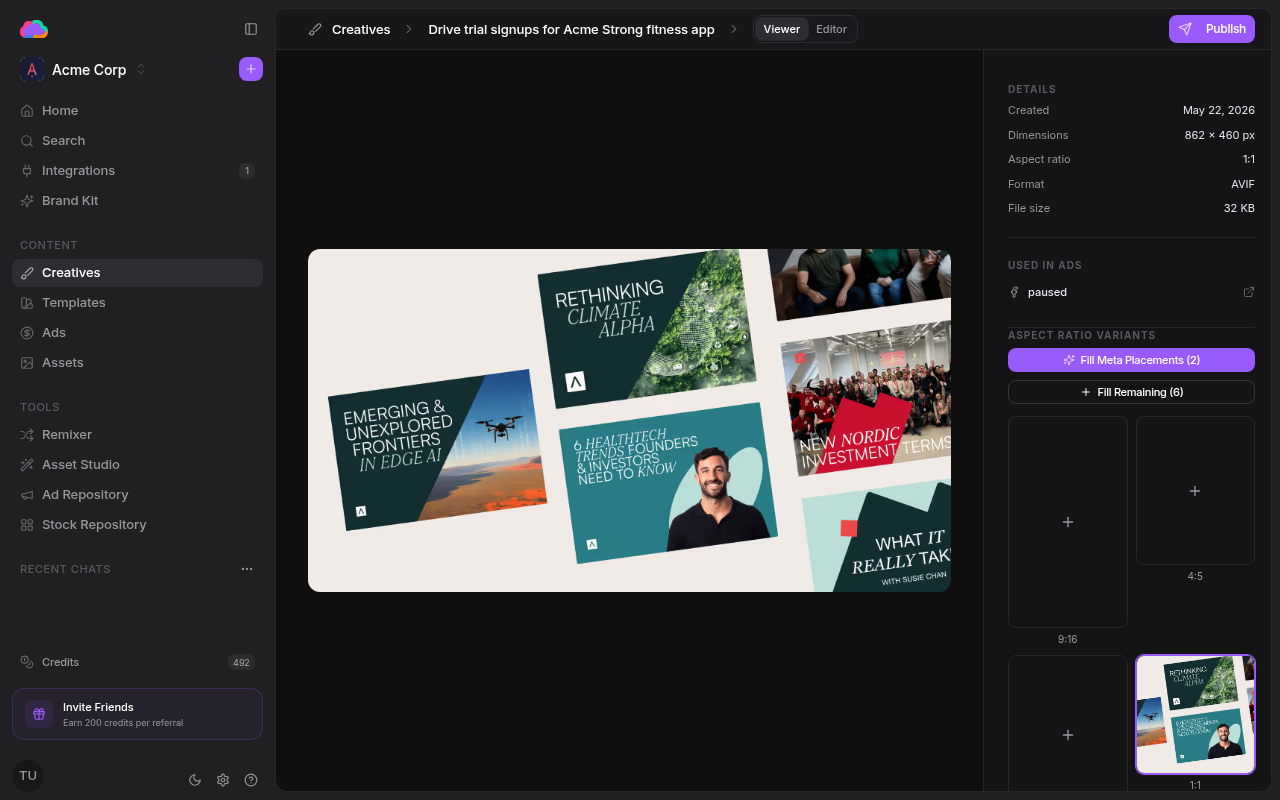
The Viewer tab is read-only and surfaces:
- Details — created date, dimensions, aspect ratio, file format, and file size
- Used in ads — every live ad that references this creative, linked through to the Ads page
- Aspect Ratio Variants — generate the creative in extra ratios (9:16, 4:5, 1:1, 16:9, and more). Fill Meta Placements and Fill Remaining batch-generate the sizes you still need
The Editor tab is where you change the image. The operation bar exposes Remove Background and Paint mask, and the side panel hosts an AI chat — describe the edit in plain language and the agent applies it. Hit Apply to creative to save the result back.
Publishing
Click Publish to launch a creative as an ad. You can send it to LinkedIn Ads, Meta Ads, or Google Ads — each opens a draft you finalize before going live. See Integrations for the connection steps.
Creatives land here from every creation surface — the Remixer, Assets, one-click adopt from the Ad Repository, and the Agent chat. They all deposit into the same grid.