Assets
The Assets tab is your centralized hub for every visual tied to your brand — logos, product shots, team photos, and any other imagery feeding into your ad creatives.
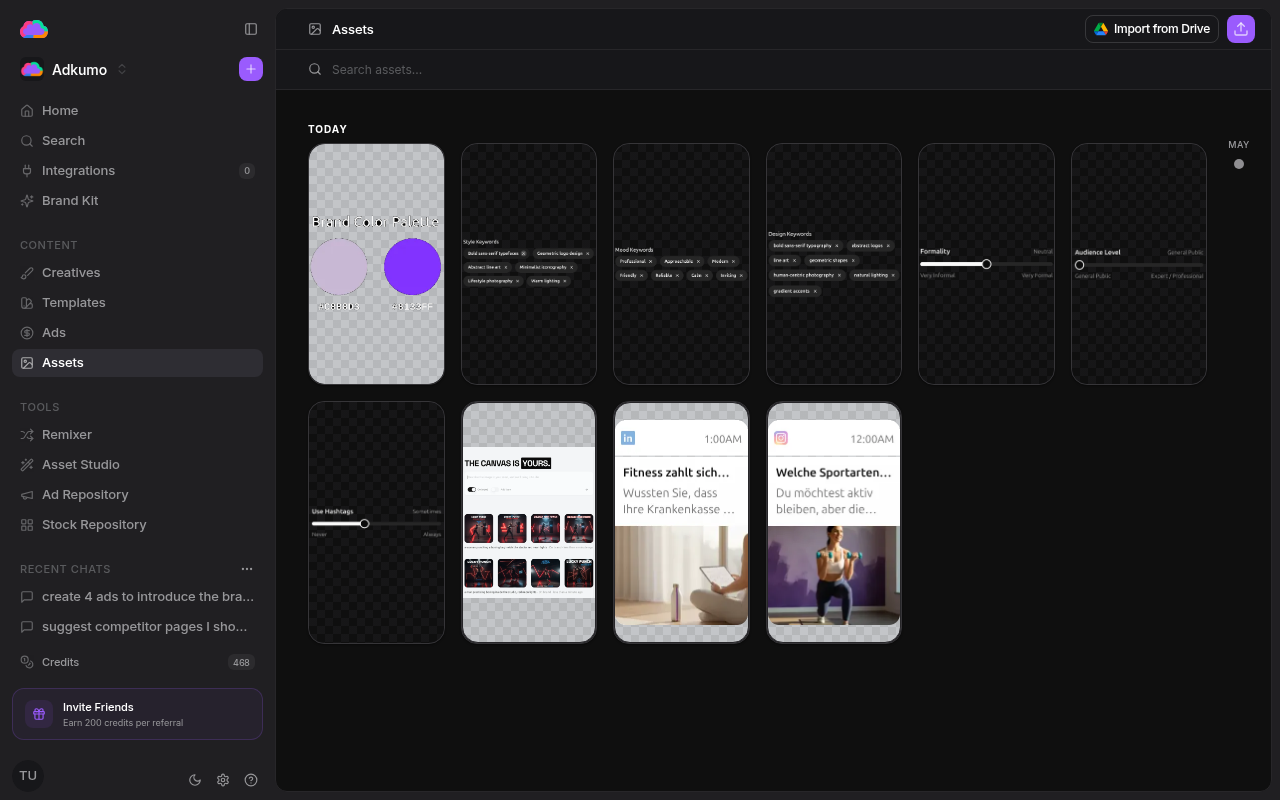
Browsing assets
Assets are displayed in a responsive grid grouped by date. Each card shows a thumbnail preview with quick actions for viewing, downloading, and deleting.
Adding assets
Click Import from Drive in the top right to pull images straight from Google Drive, or use the upload button next to it. Visuals you generate in the Assets or Remixer are also saved here automatically. The library holds images — PNG, JPG, SVG, AVIF, and WebP. (Brand documents like PDFs live on the Files tab of the Brand Kit.)
Search and filter
Use the search bar to find assets by name. The timeline on the right lets you jump to assets from a specific month.
Asset detail
Click any asset to open its detail view, where you can view the full-resolution image, see metadata (dimensions, file size, upload date), copy the asset URL, download the original, or delete it.